> ## Documentation Index
> Fetch the complete documentation index at: https://docs.krait.io/llms.txt
> Use this file to discover all available pages before exploring further.
# GitHub
> Integrate GitHub with Krait to enable automated, continuous security scanning across your repositories. You can connect to GitHub using the GitHub app.
### Connecting Github
Navigate to the GitHub connect window and click **Connect with GitHub App** to begin the integration process.
You’ll be redirected to GitHub to install the **Krait GitHub App**. Choose whether to install it under your personal account or an organization you manage.
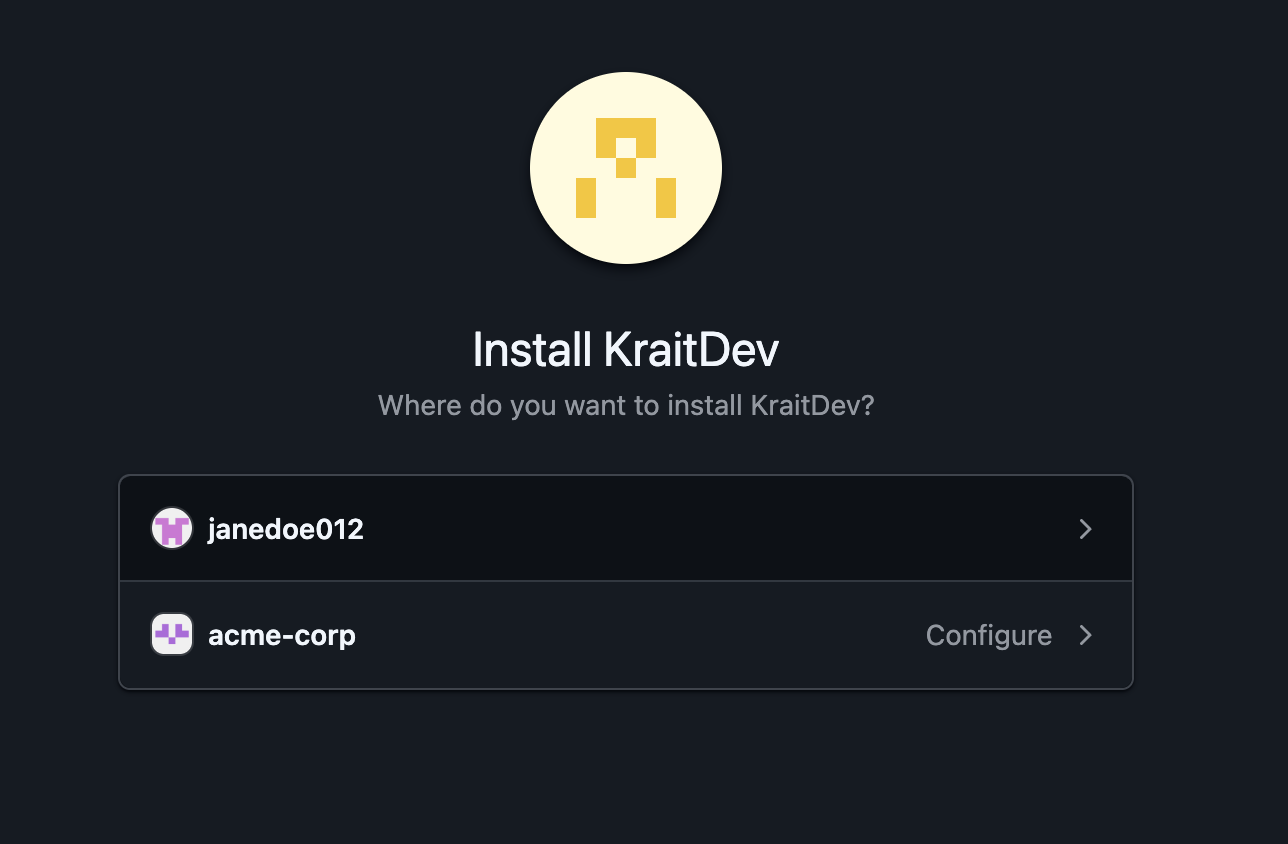 Select the organization or personal GitHub account where you want to enable the integration.
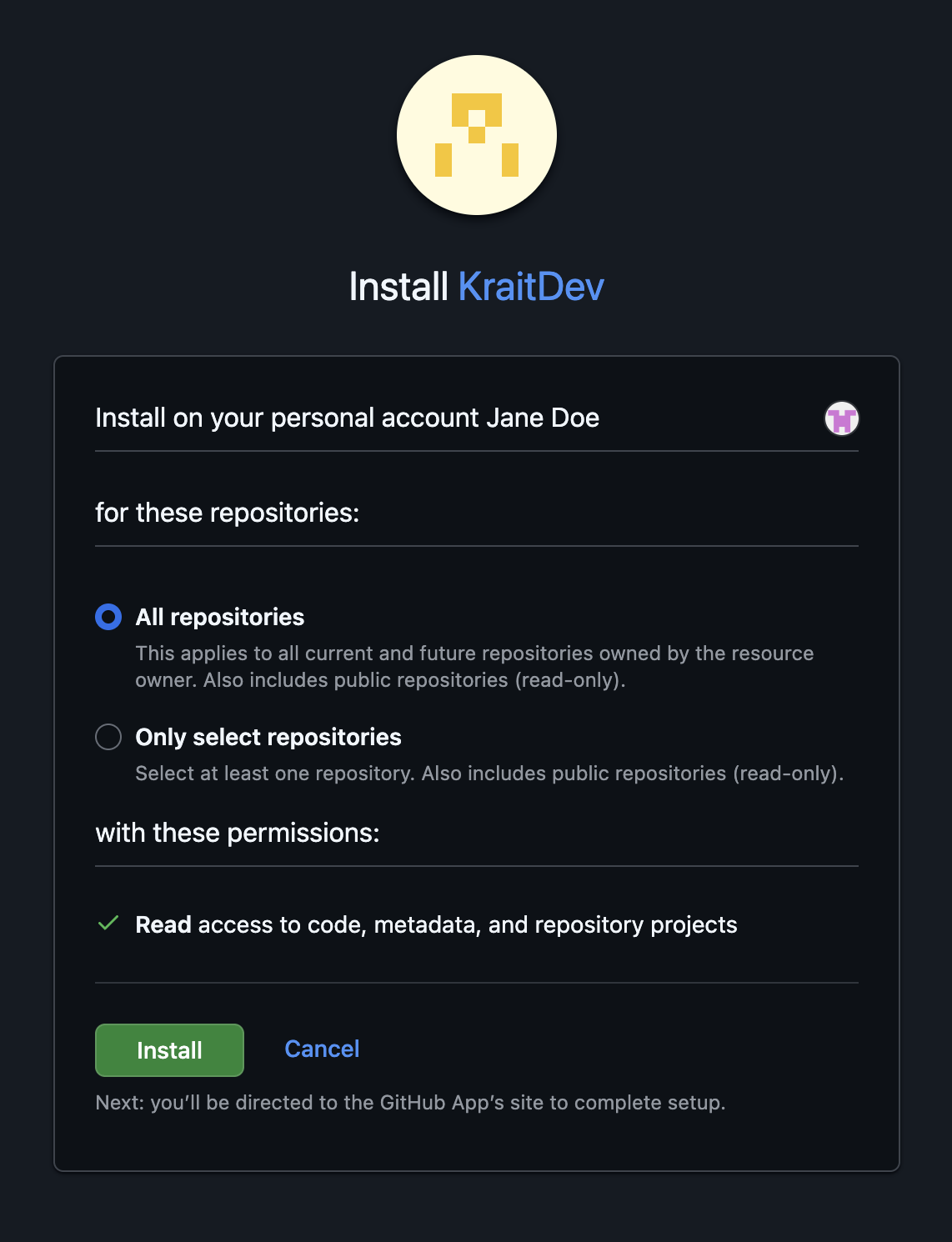 Pick the repositories you want Krait to access and scan. You may select specific repositories or grant access to all repositories.
 Review the permissions requested by the Krait GitHub App and complete the installation.
After installation, you’ll be redirected back to Krait where your repositories will now appear and be available for integration.
Congratulations! Your GitHub is now connected to Krait. You'll find vulnerabilities in your dashboard soon.
***
### Disconnecting Github
To disconnect GitHub from Krait, navigate to **Integrations** in the main sidebar and select **Version Control**. Locate GitHub among your connected integrations and click **Disconnect**. This action requires workspace owner permissions. Confirm the confirmation prompt to remove the integration. After disconnection, GitHub repositories will no longer be synced or scanned by Krait. GitHub can be reconnected from the Version Control section when desired.
You may need to uninstall the **KraitDev** app from your Github account manually.
Review the permissions requested by the Krait GitHub App and complete the installation.
After installation, you’ll be redirected back to Krait where your repositories will now appear and be available for integration.
Congratulations! Your GitHub is now connected to Krait. You'll find vulnerabilities in your dashboard soon.
***
### Disconnecting Github
To disconnect GitHub from Krait, navigate to **Integrations** in the main sidebar and select **Version Control**. Locate GitHub among your connected integrations and click **Disconnect**. This action requires workspace owner permissions. Confirm the confirmation prompt to remove the integration. After disconnection, GitHub repositories will no longer be synced or scanned by Krait. GitHub can be reconnected from the Version Control section when desired.
You may need to uninstall the **KraitDev** app from your Github account manually.