> ## Documentation Index
> Fetch the complete documentation index at: https://docs.krait.io/llms.txt
> Use this file to discover all available pages before exploring further.
# GitLab
> Integrate Gitlab with Krait to enable automated, continuous security scanning across your repositories. You can connect to GitHub using the GitHub app.
## Connecting Gitlab
You can connect your Gitlab to Krait using either the **Gitlab Identity Provider** or through the **Personal Access Token**
### Using Gitlab Identity Provider
We recommend using Gitlab's identity provider for an easier and secure connection.
Click **Connect with Identity Provider** to start the GitLab integration process.
You will be redirected to GitLab for secure authentication. Log in using your GitLab account or your organization’s SSO.
Review and approve the permissions requested by Krait to enable secure repository access.
After granting permissions, you’ll be redirected back to Krait automatically. The integration will activate immediately, and your GitLab resources will be available for scanning.
### Using Personal Access Token
Sign in to your GitLab account.\
Once logged in, open your profile menu and navigate to **Edit Profile** and find **Personal Accesss Tokens**. You can also go directly using the Access Tokens link provided in GitLab.
Click **Add Token**, give it a clear label such as **Krait Integration**,\
and select the required scopes: **read\_user**, **read\_repository**, and **read\_virtual\_registry**.
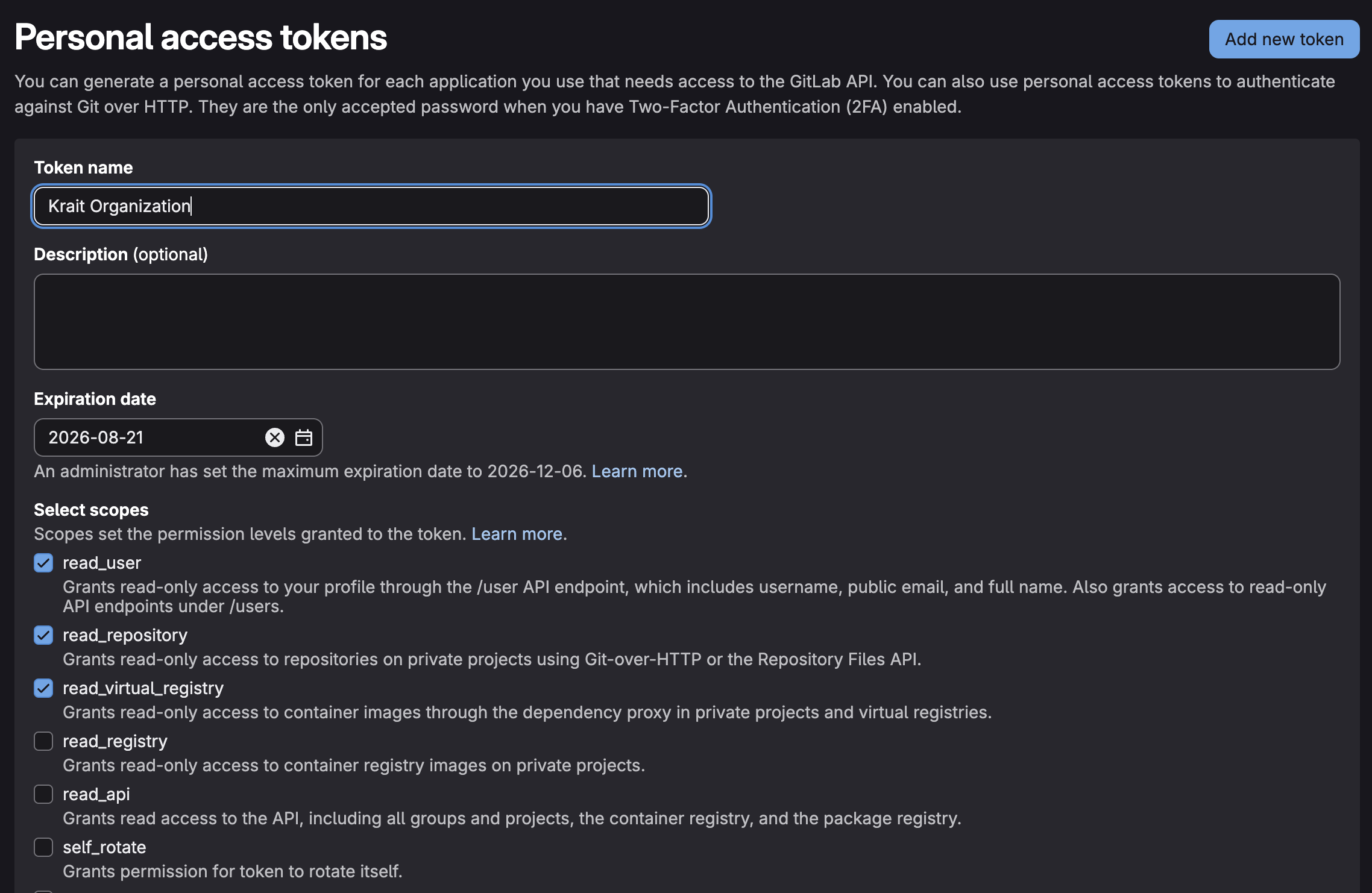 GitLab will generate the token **only once**. Copy it and store it securely for later use.
Open the Krait dashboard and navigate to **Gitlab** from **Integrations** by selecting **Code**. Then click **Connect**. Select the option **Personal Access Token** and paste the copied token into the **Access Token** field.
Click **Submit**.\
Krait will validate the token and connect your GitLab projects for automated vulnerability scanning.
Congratulations! Your Gitlab is now connected to Krait. You'll find vulnerabilities in your dashboard soon.
## Disconnecting Gitlab
To disconnect GitLab from your Krait workspace, go to **Integrations** in the main sidebar and open the **Version Control** section. Find **GitLab** in the list of connected integrations and click **Disconnect**. Only a **workspace owner** can perform this action. Confirm the prompt to complete the disconnection. Once disconnected, GitLab repositories will no longer be scanned or monitored by Krait. You can reconnect GitLab at any time from the **Version Control** section if needed.
You may need to uninstall the **KraitDev** app from your Gitlab account manually.
GitLab will generate the token **only once**. Copy it and store it securely for later use.
Open the Krait dashboard and navigate to **Gitlab** from **Integrations** by selecting **Code**. Then click **Connect**. Select the option **Personal Access Token** and paste the copied token into the **Access Token** field.
Click **Submit**.\
Krait will validate the token and connect your GitLab projects for automated vulnerability scanning.
Congratulations! Your Gitlab is now connected to Krait. You'll find vulnerabilities in your dashboard soon.
## Disconnecting Gitlab
To disconnect GitLab from your Krait workspace, go to **Integrations** in the main sidebar and open the **Version Control** section. Find **GitLab** in the list of connected integrations and click **Disconnect**. Only a **workspace owner** can perform this action. Confirm the prompt to complete the disconnection. Once disconnected, GitLab repositories will no longer be scanned or monitored by Krait. You can reconnect GitLab at any time from the **Version Control** section if needed.
You may need to uninstall the **KraitDev** app from your Gitlab account manually.