> ## Documentation Index
> Fetch the complete documentation index at: https://docs.krait.io/llms.txt
> Use this file to discover all available pages before exploring further.
# Tickets
> Turn security findings into trackable work items with Krait's native Linear integration. Set it up once and your entire team can create, assign, and track vulnerability-driven tickets without leaving their workflow.
## Connecting Krait with Linear
This is a one-time setup per workspace. Once connected, everyone in your Krait organization can create Linear issues directly from findings.
You must be a workspace Owner, Administrator, or Manager to connect or configure Linear.
Go to **Integrations**, then **Ticketing**, then select the **Linear** card.
An integration panel will open on the right. Enter your **Linear API Key**, which you can generate from your Linear account settings.
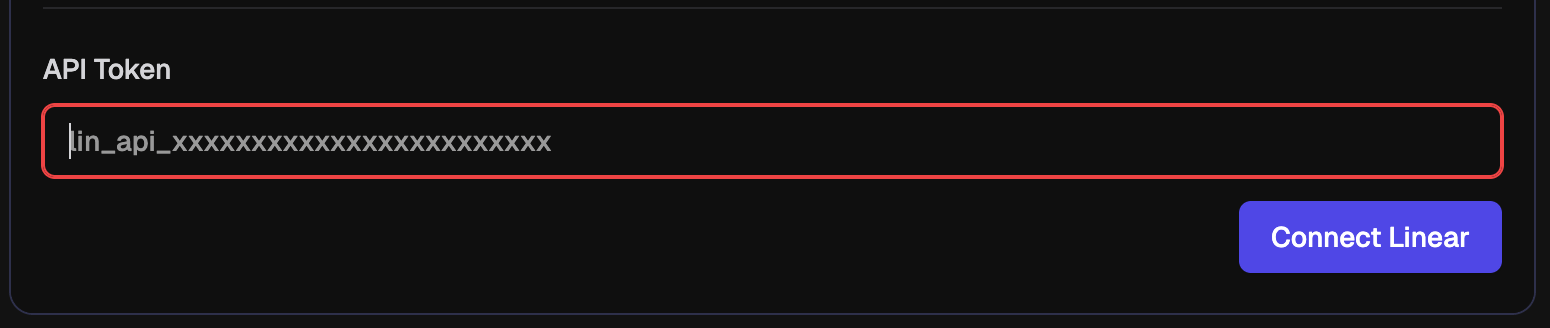 Grant Krait permission to access your Linear workspace. Once authorized, Krait validates the connection and confirms it is active.
## User Mapping
If you use a different email address in Linear than the one you use in Krait, tickets pushed to Linear will not automatically know who to assign them to. User mapping lets you explicitly link your Krait account to the correct Linear identity so that tickets are always assigned to the right person.
Navigate to **Integrations**, then **Ticketing**, then **Linear**.
Inside the Linear integration panel, scroll down to the **User Mapping** section. Krait will list all members of your workspace.
Grant Krait permission to access your Linear workspace. Once authorized, Krait validates the connection and confirms it is active.
## User Mapping
If you use a different email address in Linear than the one you use in Krait, tickets pushed to Linear will not automatically know who to assign them to. User mapping lets you explicitly link your Krait account to the correct Linear identity so that tickets are always assigned to the right person.
Navigate to **Integrations**, then **Ticketing**, then **Linear**.
Inside the Linear integration panel, scroll down to the **User Mapping** section. Krait will list all members of your workspace.
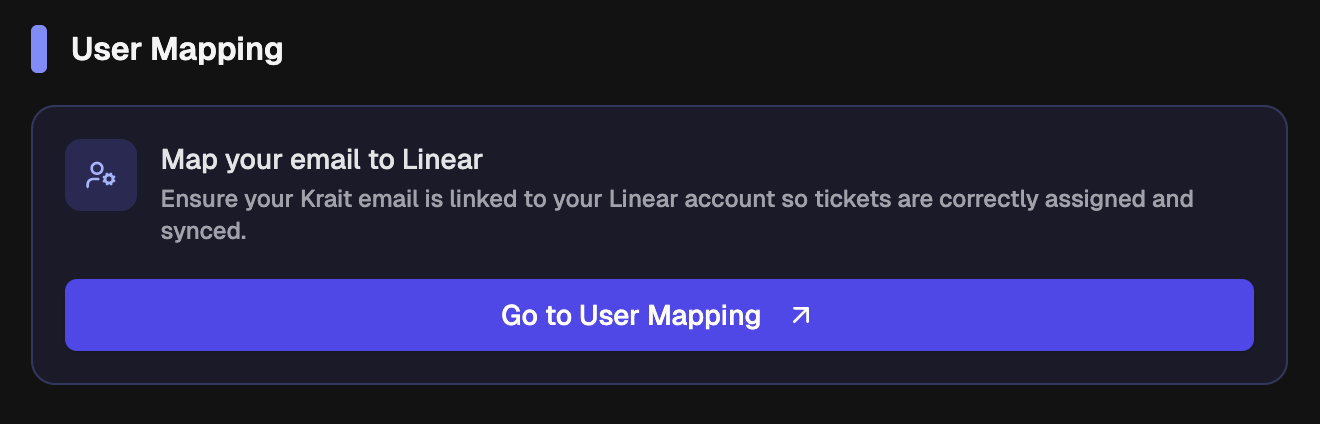 Next to your name, enter the email address associated with your Linear account. This tells Krait which Linear user to assign tickets to when they are created from Krait.
Click **Save** to confirm. Tickets created from Krait will now be correctly assigned to your Linear account.
Each workspace member sets their own mapping independently. If a member has no mapping configured, tickets pushed to Linear will be unassigned.
## Disconnecting Linear
You can disconnect Linear from Krait at any time.
Next to your name, enter the email address associated with your Linear account. This tells Krait which Linear user to assign tickets to when they are created from Krait.
Click **Save** to confirm. Tickets created from Krait will now be correctly assigned to your Linear account.
Each workspace member sets their own mapping independently. If a member has no mapping configured, tickets pushed to Linear will be unassigned.
## Disconnecting Linear
You can disconnect Linear from Krait at any time.
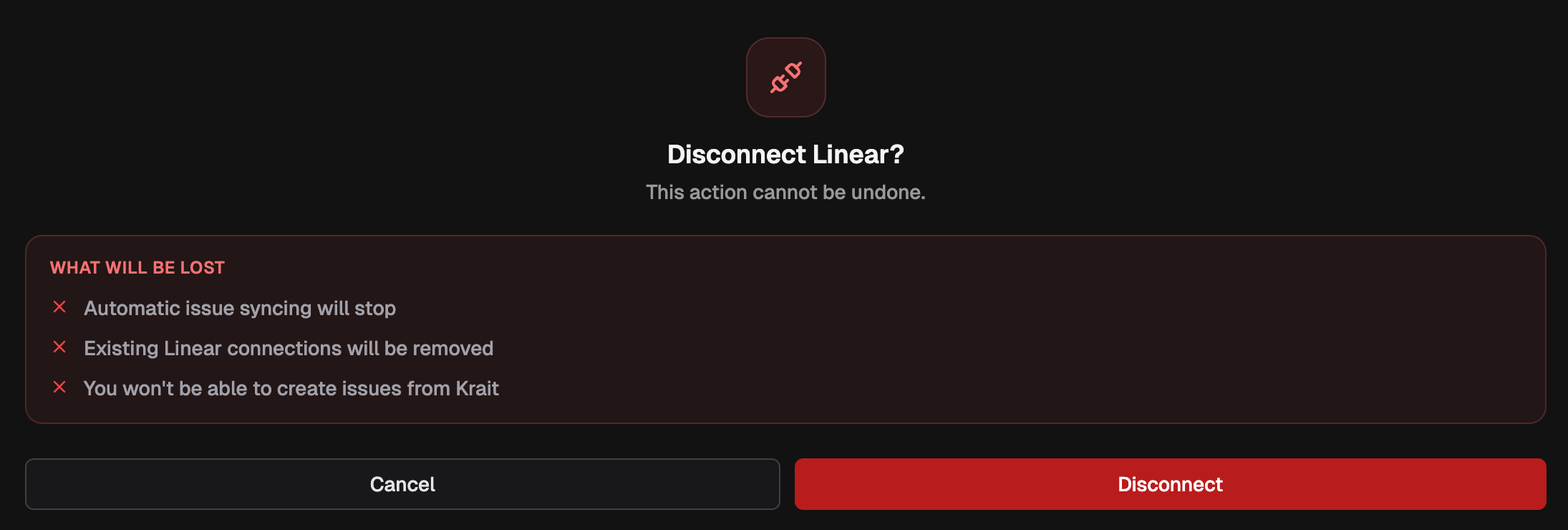 By disconnecting, you will lose access to the following Linear features within Krait:
* Automatic issue syncing
* All existing Linear connections
* The ability to create new issues from Krait
You must be a workspace owner or admin to disconnect Linear from Krait.
By disconnecting, you will lose access to the following Linear features within Krait:
* Automatic issue syncing
* All existing Linear connections
* The ability to create new issues from Krait
You must be a workspace owner or admin to disconnect Linear from Krait.