> ## Documentation Index
> Fetch the complete documentation index at: https://docs.krait.io/llms.txt
> Use this file to discover all available pages before exploring further.
# Container Scanning
> Analyze your container images to identify known security vulnerabilities and reduce risk before deployment.
Connect your DockerHub account to start scanning your container images.
Connect your DockerHub registry
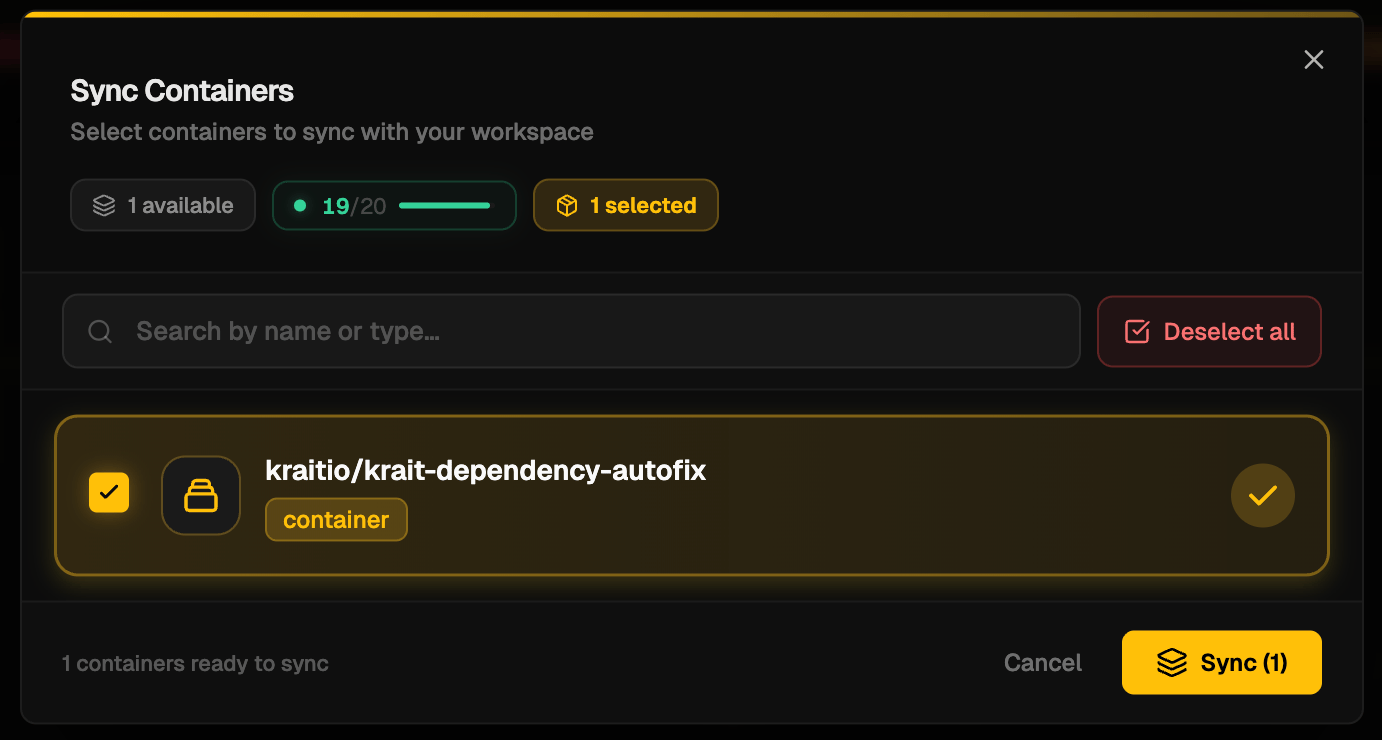
After connecting DockerHub, sync the container images you want to scan. The number of images you connect will depend on the type of your workspace.
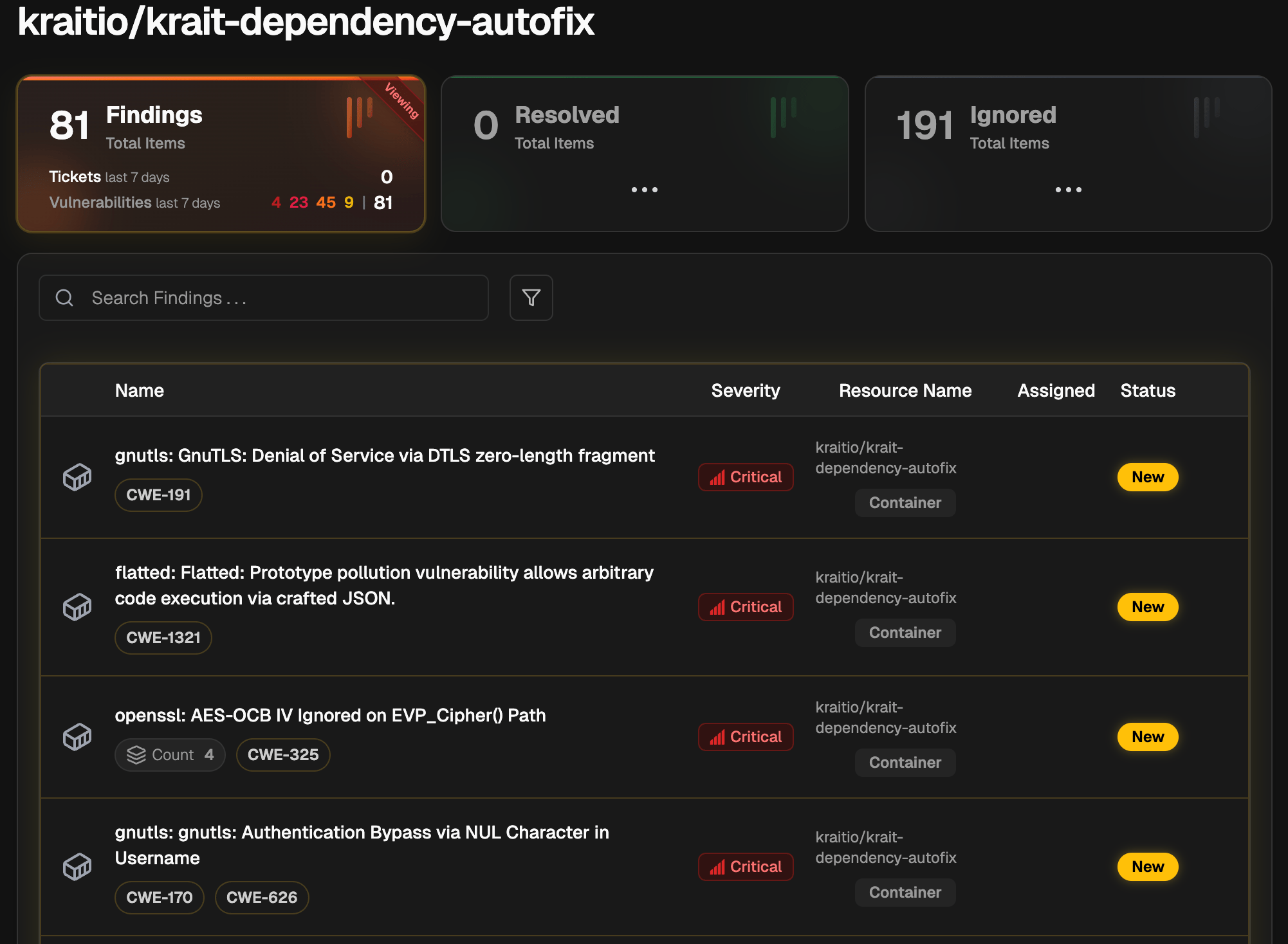
 Initiate a scan on your selected container images. The scan take a few minutes depending on the size and number of images.
Once the scan completes, findings will appear on the page.
Initiate a scan on your selected container images. The scan take a few minutes depending on the size and number of images.
Once the scan completes, findings will appear on the page.
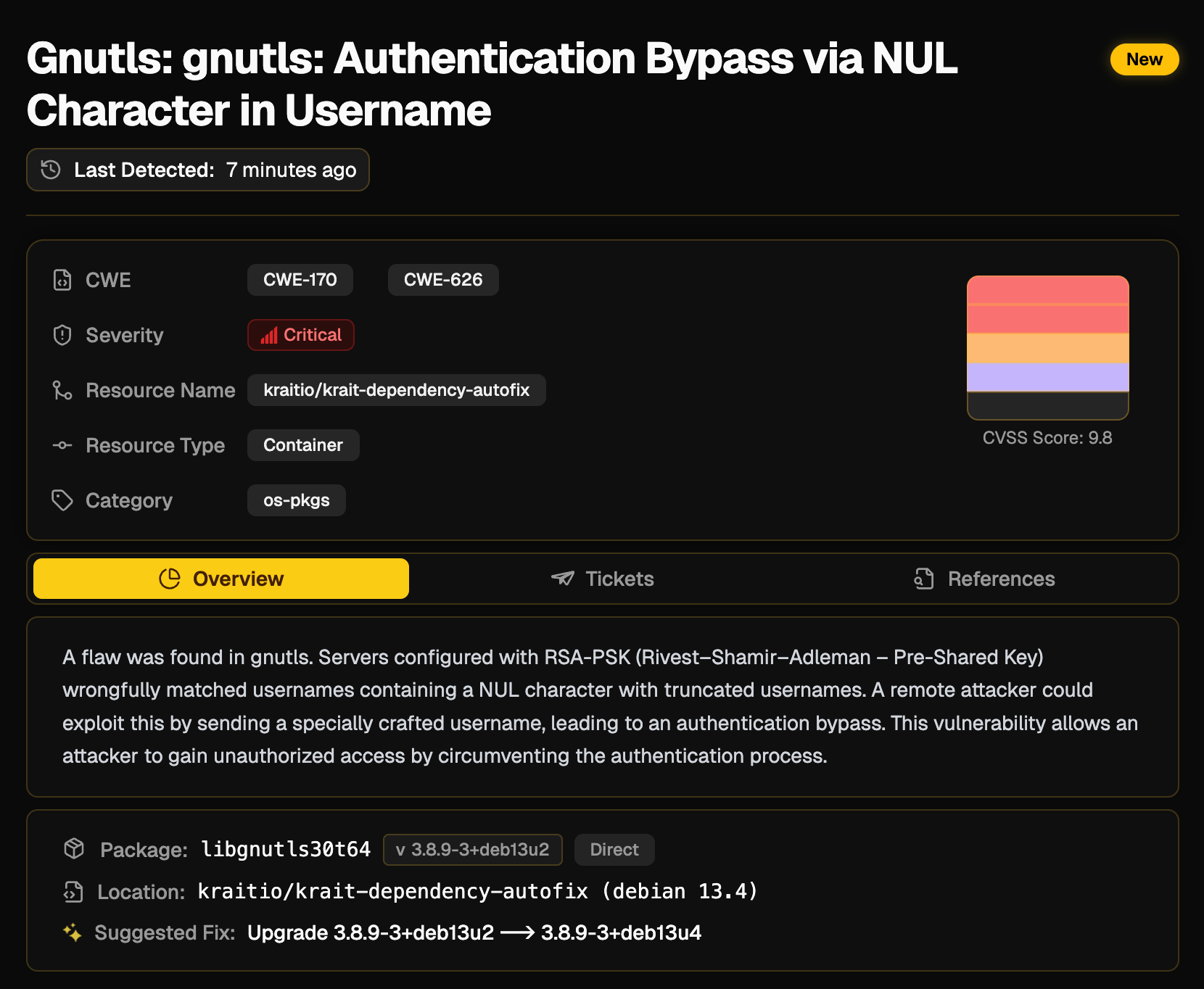
 By clicking on any finding, you will see its detail. You will find a short explanation, the code snippet, catagory, severity, CVSS score, references. If a issue is present multiple times, Krait will only show one finding and group all the instances together. You can also create a ticket from the findings page.
 Container scanning in Krait provides continuous visibility into security risks within your container images. By scanning images and reviewing actionable findings, teams can identify, prioritize, and remediate vulnerabilities before containers are deployed to production.
## Linking to Repositories
When a container and a code repository share the same application context, scanning them independently can produce duplicate findings for the same underlying issue. Linking a container to its corresponding repository lets Krait merge overlapping results, giving you a single clean list of findings with no repeated noise.
Each container can be linked to one repository only. You can unlink at any time without affecting your scans.
Go to **Assets**, then select **Containers**.
Click **Link Repository** to open the linking panel.
Container scanning in Krait provides continuous visibility into security risks within your container images. By scanning images and reviewing actionable findings, teams can identify, prioritize, and remediate vulnerabilities before containers are deployed to production.
## Linking to Repositories
When a container and a code repository share the same application context, scanning them independently can produce duplicate findings for the same underlying issue. Linking a container to its corresponding repository lets Krait merge overlapping results, giving you a single clean list of findings with no repeated noise.
Each container can be linked to one repository only. You can unlink at any time without affecting your scans.
Go to **Assets**, then select **Containers**.
Click **Link Repository** to open the linking panel.
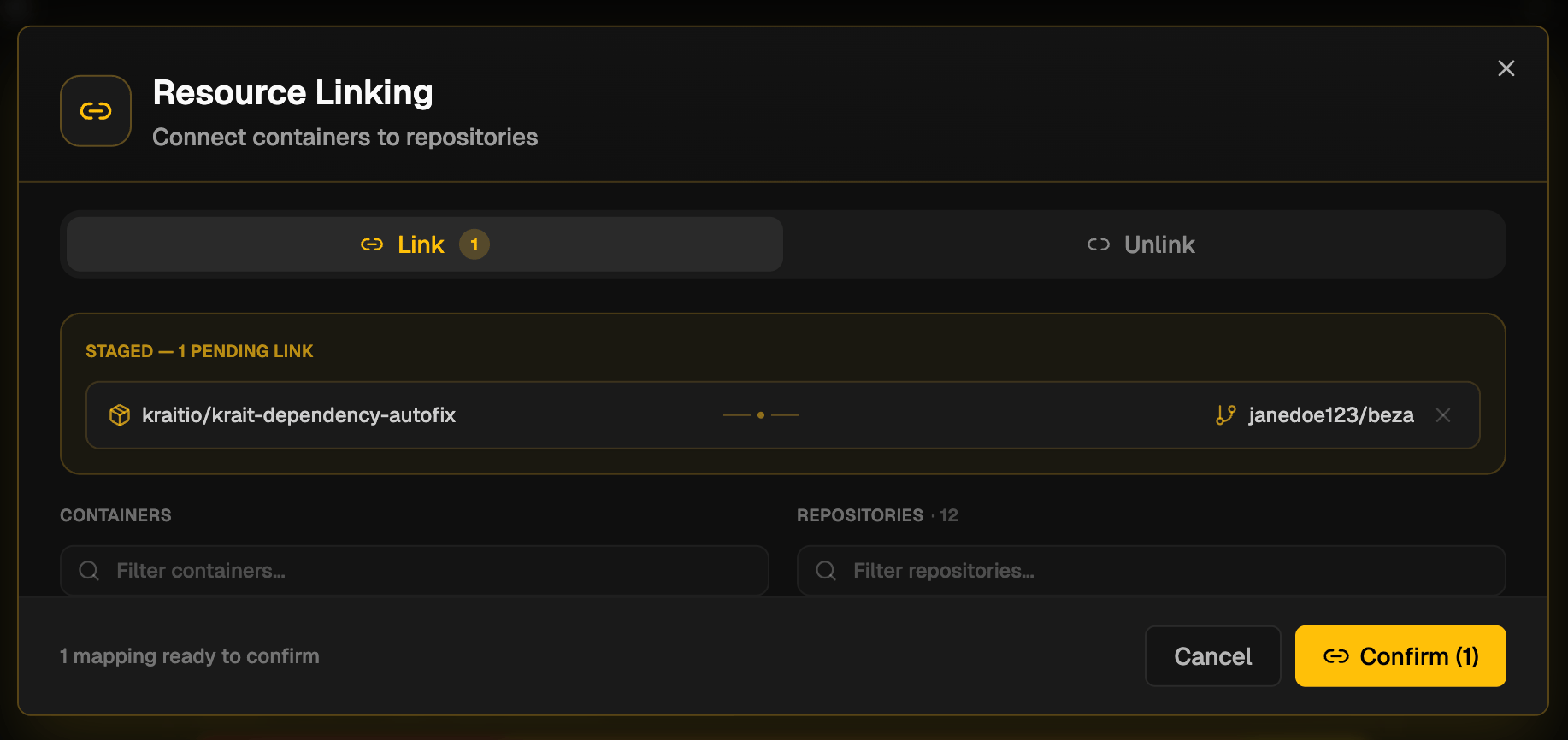 Choose a container from the list of connected containers, then select the repository you want to link it to from the list of connected repositories.
Click **Confirm**. Krait will now correlate findings across the linked container and repository, automatically deduplicating any overlapping vulnerabilities.
To unlink, return to **Assets**, select **Containers**, open the linked container, and click **Unlink Repository**.
Choose a container from the list of connected containers, then select the repository you want to link it to from the list of connected repositories.
Click **Confirm**. Krait will now correlate findings across the linked container and repository, automatically deduplicating any overlapping vulnerabilities.
To unlink, return to **Assets**, select **Containers**, open the linked container, and click **Unlink Repository**.