> ## Documentation Index
> Fetch the complete documentation index at: https://docs.krait.io/llms.txt
> Use this file to discover all available pages before exploring further.
# Managing Tickets
> Convert security findings into engineering tickets directly from Krait-quickly and with full context. Each ticket carries all the essential details, including metadata and affected code, so engineers can take action without chasing information. This keeps security and engineering teams aligned and makes the entire remediation process smoother, whether you're operating day-to-day or at enterprise scale.
## The Tickets Dashboard
The Tickets Dashboard provides a unified, real-time view of all tickets generated within your Krait workspace. This dashboard enables security teams, engineering teams, and cross-functional stakeholders to track remediation progress with clarity and precision.
This section explains the layout, features, and user interactions available within the dashboard.
## **Overview**
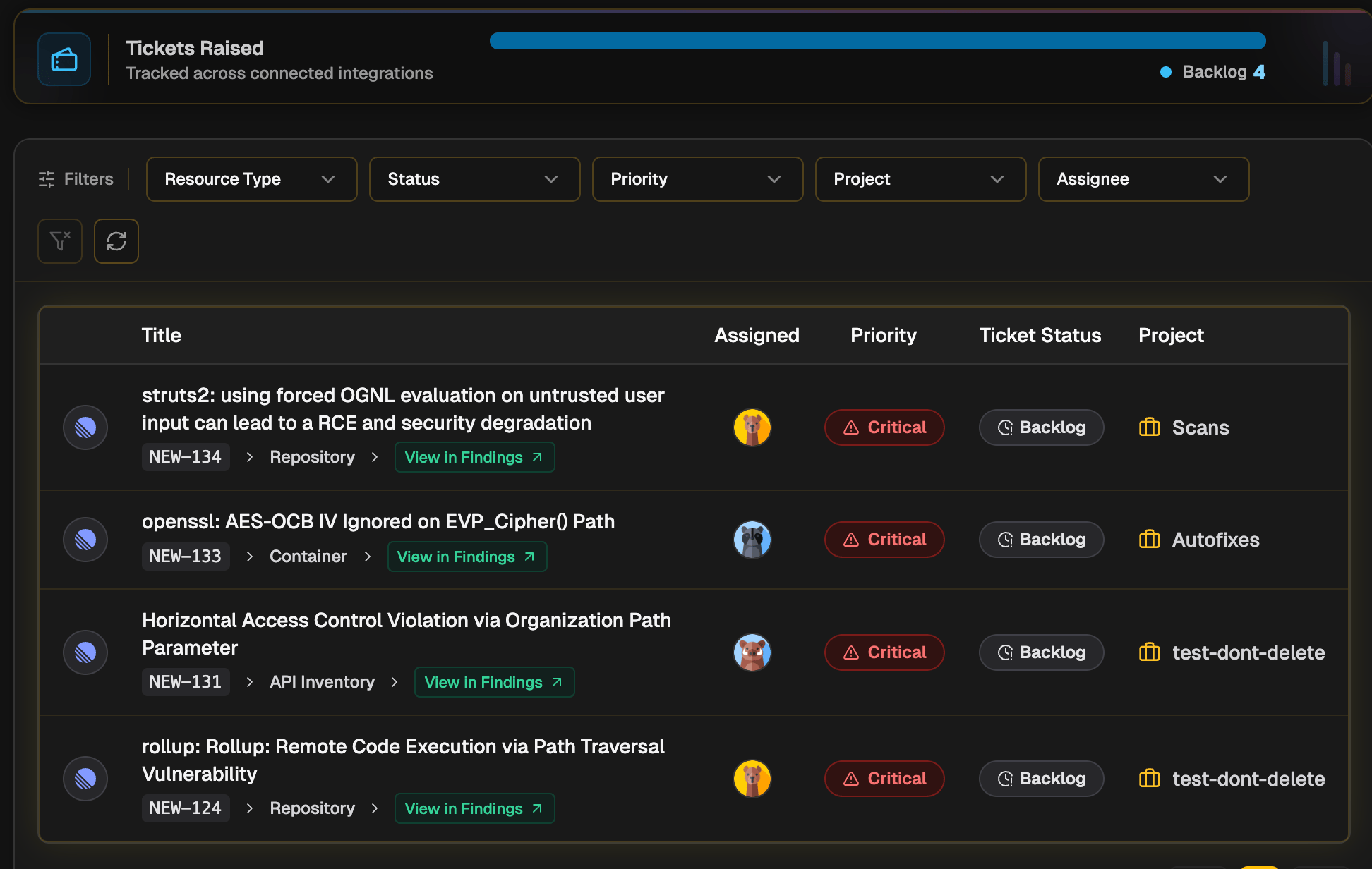
Each row in the dashboard represents a single ticket enriched with contextual metadata. The interface is designed for clarity and efficient scanning, making it easy to assess remediation status at a glance.
 ### **Key Columns Displayed**
* **Title & Ticket Key**\
Shows the issue title along with the ticket identifier (e.g., KRA-256). Each entry includes a link to open the issue directly in Linear.
* **Resource Context**\
Indicates where the vulnerability originated-Repository, Container, or API Inventory-allowing engineers to immediately understand scope and impact.
* **Status**\
Displays the current workflow stage (Backlog, Todo, In Progress, Done, etc.). Status is continuously synced from your ticketing platform to keep Krait aligned with engineering activity.
* **Priority**\
A color-coded badge (Critical, High, Medium, Low) that helps teams quickly prioritize remediation tasks.
* **Project**\
Shows the associated Linear project/team where the issue is tracked.
* **Assigned To**\
Displays the engineer currently responsible for the remediation, with avatars for quick visual identification.
* **System**\
Identifies Linear as the originating ticketing platform through a recognizable platform icon.
## **Filtering and Navigation**
The dashboard includes an intuitive filtering bar designed to help teams instantly surface the tickets most relevant to their role or workflow.
### **Available Filters**
* **Resource Type** - Filter tickets by source (Repository, Container, etc.).
* **Ticket Status** - View tickets by workflow state (e.g., In Progress, Done).
* **Priority** - Narrow the list to urgent issues or lower-priority items.
* **Project** - Filter by specific Linear projects.
* **Assigned To** - Identify tickets owned by specific engineers.
Krait applies all filters dynamically, enabling fast and flexible navigation across large ticket volumes.
### **Utility Actions**
* **Reset Filters** - Restores the dashboard to its default, unfiltered state.
* **Refresh** - Fetches the latest updates from Linear to ensure all ticket statuses, assignments, and metadata reflect the most recent activity.
### **Key Columns Displayed**
* **Title & Ticket Key**\
Shows the issue title along with the ticket identifier (e.g., KRA-256). Each entry includes a link to open the issue directly in Linear.
* **Resource Context**\
Indicates where the vulnerability originated-Repository, Container, or API Inventory-allowing engineers to immediately understand scope and impact.
* **Status**\
Displays the current workflow stage (Backlog, Todo, In Progress, Done, etc.). Status is continuously synced from your ticketing platform to keep Krait aligned with engineering activity.
* **Priority**\
A color-coded badge (Critical, High, Medium, Low) that helps teams quickly prioritize remediation tasks.
* **Project**\
Shows the associated Linear project/team where the issue is tracked.
* **Assigned To**\
Displays the engineer currently responsible for the remediation, with avatars for quick visual identification.
* **System**\
Identifies Linear as the originating ticketing platform through a recognizable platform icon.
## **Filtering and Navigation**
The dashboard includes an intuitive filtering bar designed to help teams instantly surface the tickets most relevant to their role or workflow.
### **Available Filters**
* **Resource Type** - Filter tickets by source (Repository, Container, etc.).
* **Ticket Status** - View tickets by workflow state (e.g., In Progress, Done).
* **Priority** - Narrow the list to urgent issues or lower-priority items.
* **Project** - Filter by specific Linear projects.
* **Assigned To** - Identify tickets owned by specific engineers.
Krait applies all filters dynamically, enabling fast and flexible navigation across large ticket volumes.
### **Utility Actions**
* **Reset Filters** - Restores the dashboard to its default, unfiltered state.
* **Refresh** - Fetches the latest updates from Linear to ensure all ticket statuses, assignments, and metadata reflect the most recent activity.