

Connecting Docker Hub
Krait can scan your Docker images directly from Docker Hub to detect vulnerabilities and security risks before they reach your environments.To enable this integration, you’ll connect using a Docker Personal Access Token, a secure alternative to your account password.
1
Log into Docker Hub
Sign in to your Docker Hub account by visiting theOnce logged in, go to your profile and select Account Settings.
2
Create a Personal Access Token
From Settings, go to Personal Access Tokens. Click Generate new token, provide a clear label such as Krait Integration, and add Read, Write, Delete access permission.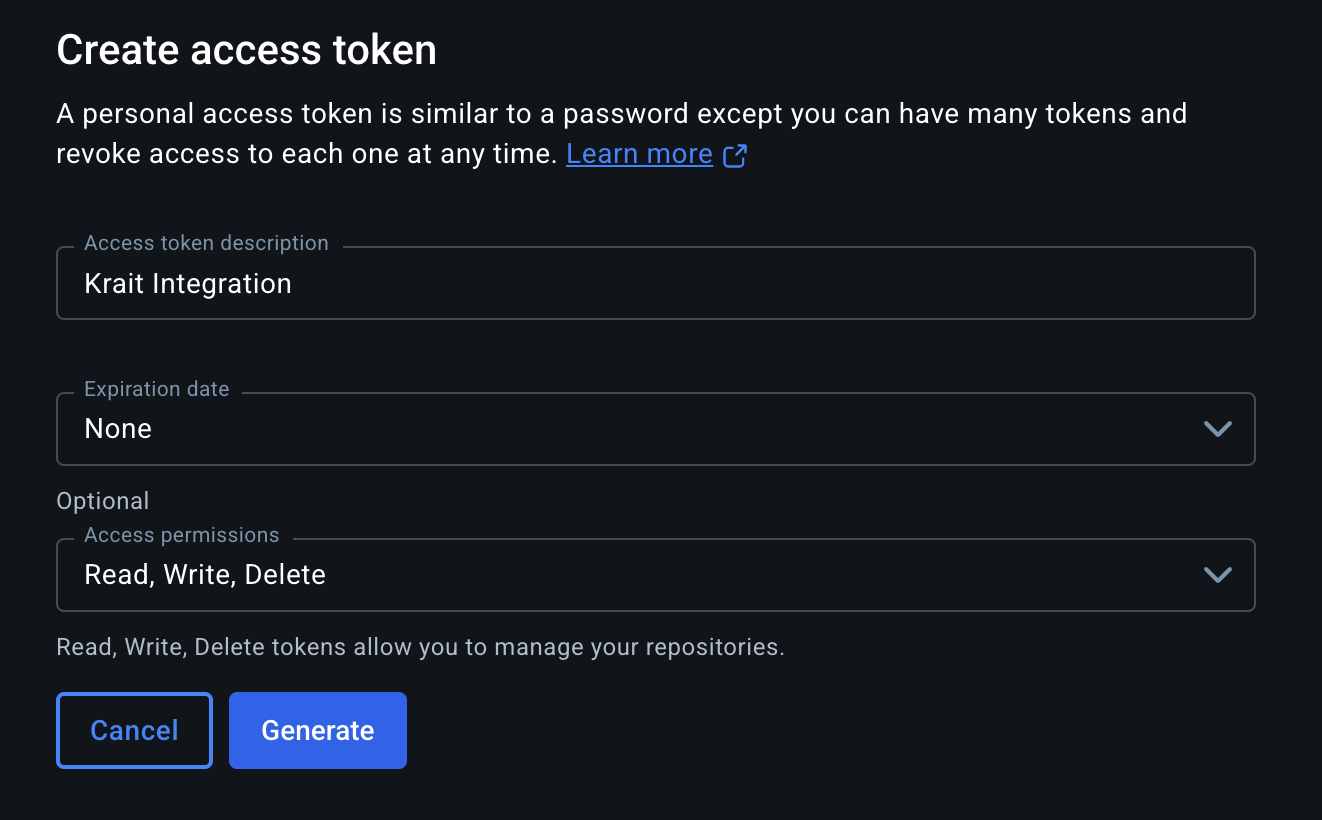
3
Copy Your Access Token
Docker will display the Access Token only once. Copy it and store it securely to authenticate Krait’s connection.
4
Connect Docker Hub in Krait
In the Krait dashboard, go to Integrations, then Containers, then Docker, and click “Connect.” Enter your Docker Hub username and paste the Access Token you created.
5
Complete the Integration
Krait will validate your credentials and securely connect your Docker Hub account. Once connected, Krait will begin scanning your container images for vulnerabilities.
Disconnecting Docker Hub
To disconnect Docker integration, go to Integrations in the dashboard sidebar and select the section where Container Registries or Docker is listed. Identify Docker in your connected integrations and click Disconnect. Only a workspace owner can disconnect this integration. Confirm the prompt to finalize the removal. After disconnection, Krait will no longer access or scan Docker registries/containers. Reconnect Docker at any time from the integrations settings.You may need to uninstall the KraitDev app from your Docker account manually.
Connecting Docker to Code Repositories
At Krait, we know when your code and container are part of the same service, they often share the same vulnerabilities. Krait lets you link them together so duplicate findings are automatically merged. We give you a clean, unified issue list with no repeated noise to slow you down.1
Open Link Repositories
In the Krait dashboard, navigate to Containers and click Link Repositories.
2
Select a Container
Click on a container from the Containers list on the left to select it. A selected container will be highlighted.
3
Link a Repository
Click on one or more repositories from the Repositories list on the right to link them to the selected container.
4
Confirm the Link
Click Confirm to save the connection. Krait will now correlate findings across the linked container and repository, deduplicating overlapping vulnerabilities in your feed.