Krait allows you to send email based invitations to both new and already existing users. Iniviting members allow you to collaborate and handle multiple tasks simultaneously to boost you work efficiency and distribute organizational responsibility seamlessly. To invite someone to your workspace, you must be the its Owner.
1

Go to Workspace Settings

Navigate to Members from Workspace Settings. Click Invite Member, then enter the email address and select the appropriate role to send the invitation.
2

Accept Invitation

The invitee will receive an email with details about the workspace. By clicking Accept Invitation, they will be redirected to the workspace dashboard.
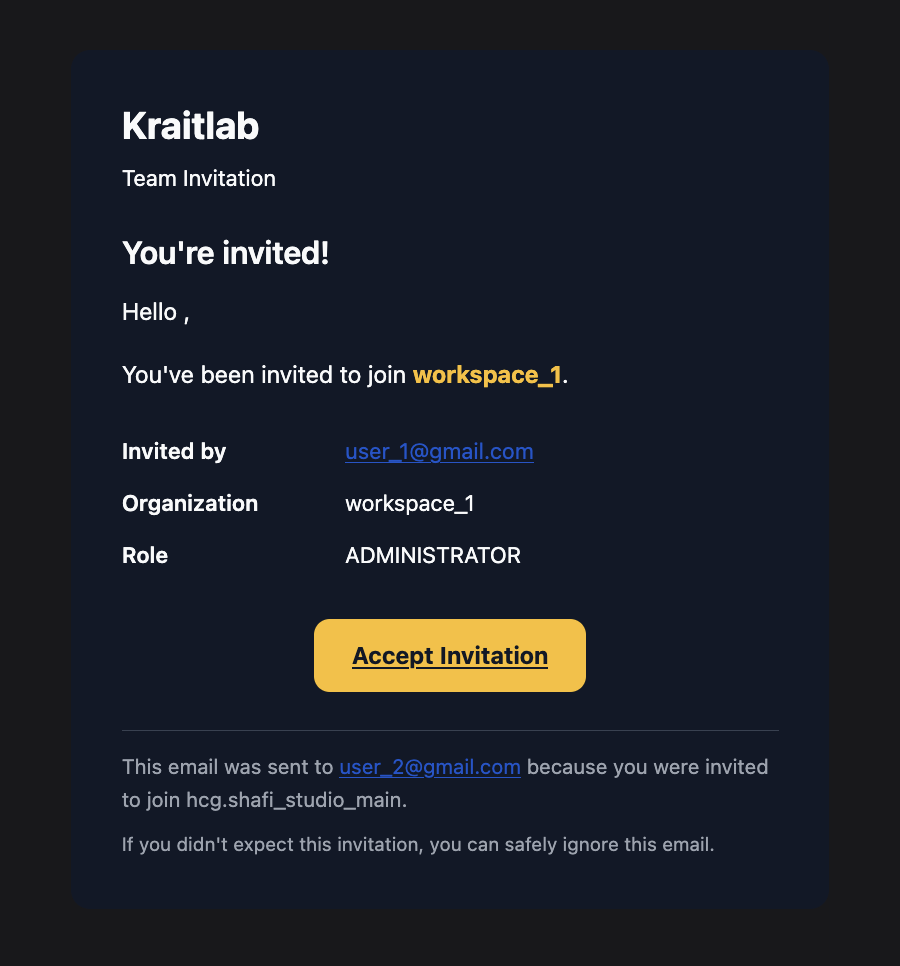
Workspace invitation email
If the invitee does not already have a Krait account, the Accept Invitation button will guide them through the onboarding process. Once the account is created, access to the workspace is automatically granted.
3

Navigate the New Workspace

After joining the workspace, the member can immediately participate based on their assigned role. Permissions define what they can view, manage, and modify within the workspace.
Thus, workspace-based member invitations in Krait make it easy to collaborate while maintaining clear access boundaries. By assigning roles at invite time, teams can safely scale collaboration without compromising control or visibility.