

Documentation Index
Fetch the complete documentation index at: https://docs.krait.io/llms.txt
Use this file to discover all available pages before exploring further.
Connecting AWS Route 53
Log into the AWS Management Console
Sign in to your AWS Management Console using an account with permission to manage IAM users and Route 53 resources. This ensures you can generate credentials and authorize Krait securely.
Open IAM Access Key Settings
Navigate to Users from IAM and select the user you want to use for the integration. Then go to Access keys from Security credentials. To learn more, visit the AWS Docs.(You may also use the direct Access Keys link provided by AWS if available.)
Create a New Access Key
Click Create access key to generate a new credential pair.
Securely copy both the Access Key ID and Secret Access Key — the secret key is shown only once. These keys allow Krait to read your DNS configurations in Route 53.
Securely copy both the Access Key ID and Secret Access Key — the secret key is shown only once. These keys allow Krait to read your DNS configurations in Route 53.
Connect Route 53 in Krait
In the Krait dashboard, go to DNS from Integrations and select AWS Route 53 and click Connect.
Paste your Credentials
Click the Next button to find the Access Key and Secret Key fields. Paste your Access Key ID and Secret Access Key into the required fields.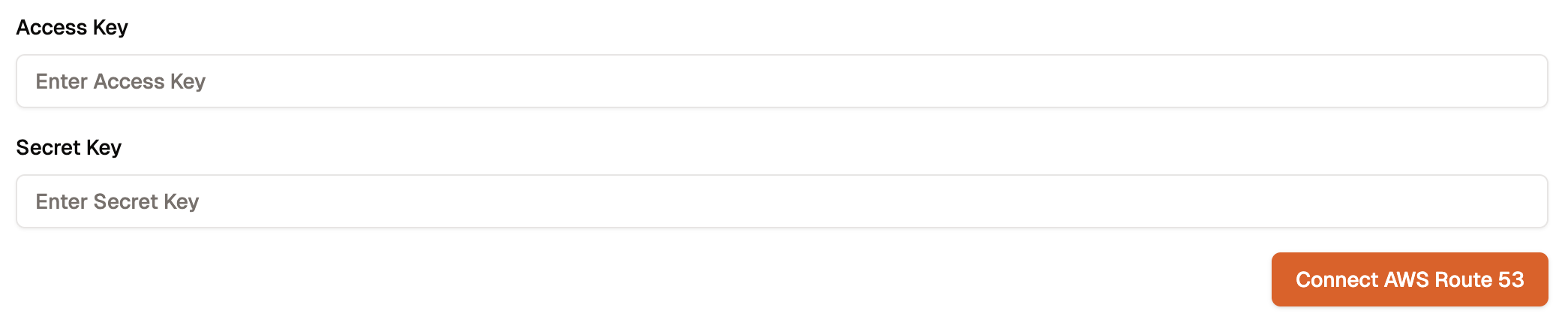
Submit and Validate
Click Connect AWS Route 53.
Krait will validate your credentials and establish a secure connection to your AWS Route 53 account. Once connected, your DNS zones and records will be available for monitoring and compliance checks.
Krait will validate your credentials and establish a secure connection to your AWS Route 53 account. Once connected, your DNS zones and records will be available for monitoring and compliance checks.
Disconnecting AWS Route 53
To disconnect Krait from your AWS Route 53 account, just navigate to the Container page from Integrations in Krait. Upon selecting AWS Route 53, you will find the disconnect button. Clicking the button will remove the connection. Only a workspace owner can disconnect the integration.You may need to uninstall the KraitDev app from your AWS Route 53 account manually.