

Creating Tickets
Every finding in Krait has a Create Ticket button. Clicking it opens the ticket creation dialog, pre-filled with context pulled directly from the finding so engineers have everything they need without any manual input.1
Click Create Ticket
Open any finding and click the Create Ticket button.
If Linear is not configured yet, Krait will prompt you to complete the integration before proceeding.
2
Fill in the dialog
The Create Linear Ticket dialog opens with the finding details already populated.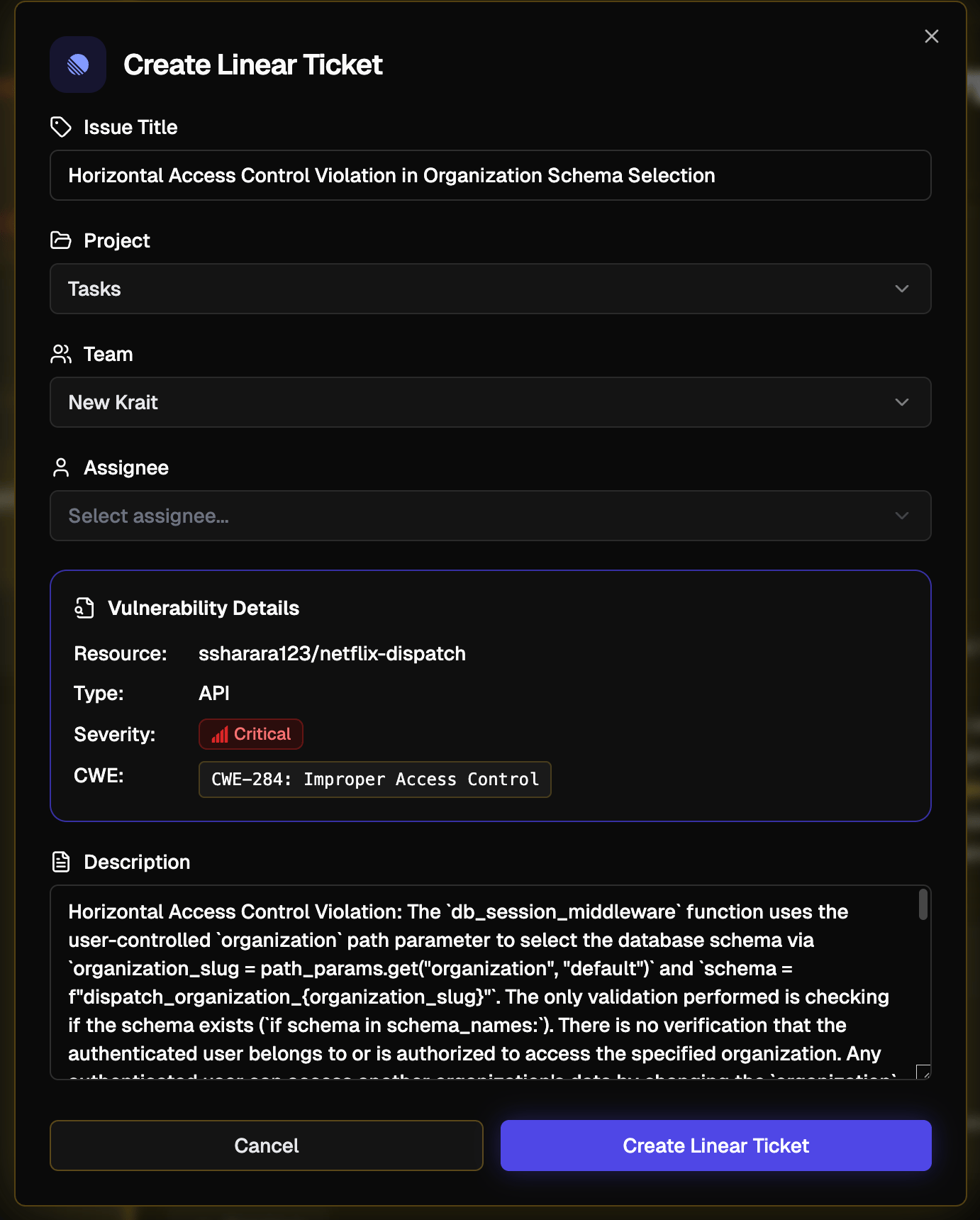
- Issue Title - auto-filled with the vulnerability name. You can edit it before submitting.
- Project - select the Linear project this ticket should be created under.
- Team - becomes available after selecting a project. Choose the team responsible for remediation.
- Assignee - becomes available after selecting a project. Optionally assign the ticket to a specific team member.
- Resource - the repository or asset where the vulnerability was found
- Type - the finding type, such as API or Dependency
- Severity - the severity level of the finding
- CWE - the weakness identifier and full description
3
Create the ticket
Click Create Linear Ticket. Krait sends the issue to your connected Linear workspace and links it back to the originating finding.
- A direct link to the Linear ticket
- The associated Linear issue key (e.g.,
KRA-123) - Ticket status and assignee
- Any other synced metadata supported by Linear (project, priority, workflow state)
How This Helps Your Team
- Faster handoff from security to engineering
- Clear traceability from vulnerability to ticket to remediation
- Reduced context switching across tools
- Transparent ownership and accountability