

Connecting Gitlab
You can connect your Gitlab to Krait using either the Gitlab Identity Provider or through the Personal Access TokenUsing Gitlab Identity Provider
We recommend using Gitlab’s identity provider for an easier and secure connection.1
Begin the Connection
Click Connect with Identity Provider to start the GitLab integration process.
2
Authenticate with GitLab
You will be redirected to GitLab for secure authentication. Log in using your GitLab account or your organization’s SSO.
3
Grant Permissions
Review and approve the permissions requested by Krait to enable secure repository access.
4
Return to Krait
After granting permissions, you’ll be redirected back to Krait automatically. The integration will activate immediately, and your GitLab resources will be available for scanning.
Using Personal Access Token
1
Log into GitLab
Sign in to your GitLab account.
Once logged in, open your profile menu and navigate to Edit Profile and find Personal Accesss Tokens. You can also go directly using the Access Tokens link provided in GitLab.
Once logged in, open your profile menu and navigate to Edit Profile and find Personal Accesss Tokens. You can also go directly using the Access Tokens link provided in GitLab.
2
Create a Personal Access Token
Click Add Token, give it a clear label such as Krait Integration,
and select the required scopes: read_user, read_repository, and read_virtual_registry.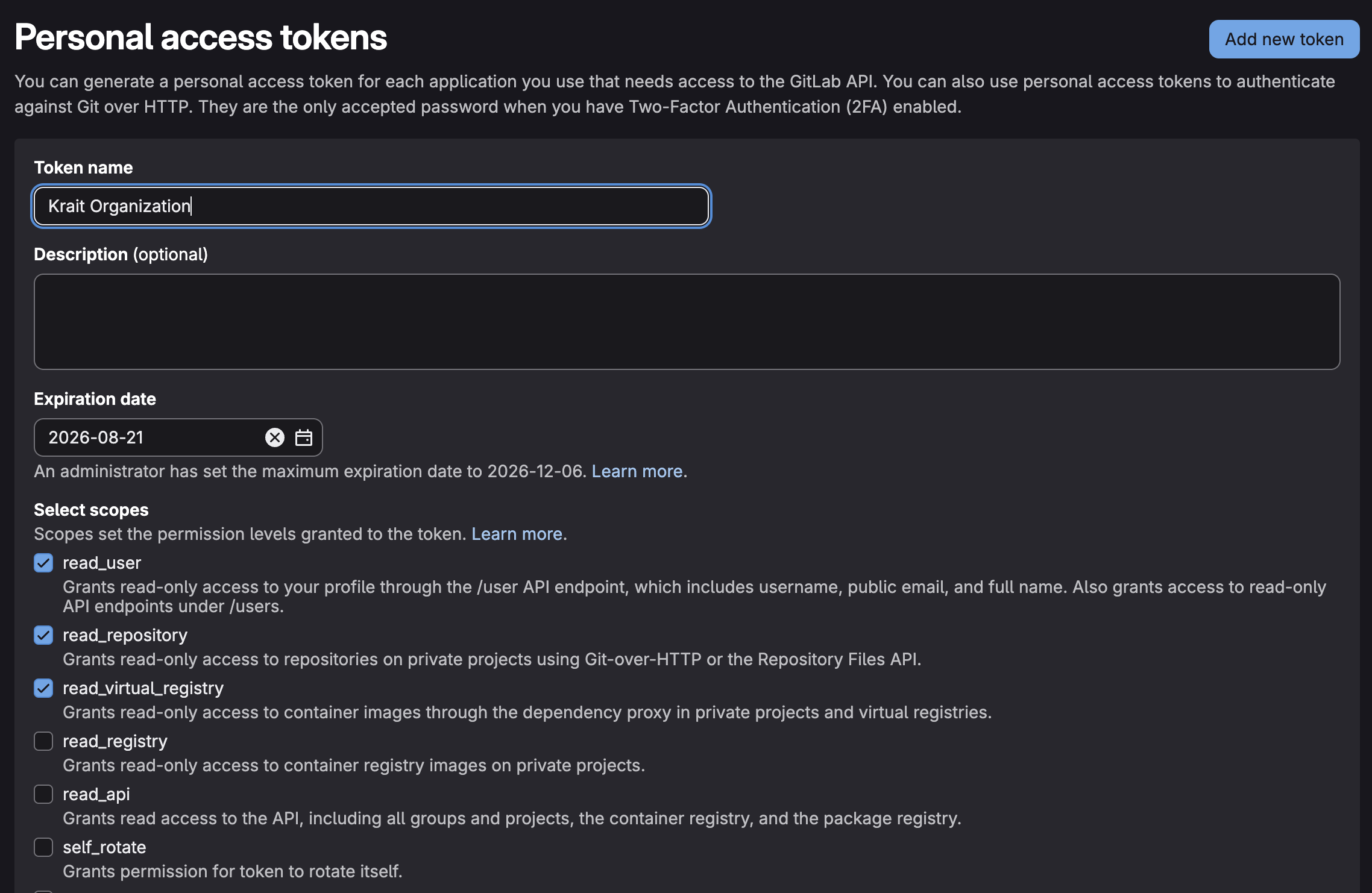
and select the required scopes: read_user, read_repository, and read_virtual_registry.
3
Copy the Token
GitLab will generate the token only once. Copy it and store it securely for later use.
4
Connect GitLab in Krait
Open the Krait dashboard and navigate to Gitlab from Integrations by selecting Code. Then click Connect. Select the option Personal Access Token and paste the copied token into the Access Token field.
5
Complete the Integration
Click Submit.
Krait will validate the token and connect your GitLab projects for automated vulnerability scanning.
Krait will validate the token and connect your GitLab projects for automated vulnerability scanning.
Disconnecting Gitlab
To disconnect GitLab from your Krait workspace, go to Integrations in the main sidebar and open the Version Control section. Find GitLab in the list of connected integrations and click Disconnect. Only a workspace owner can perform this action. Confirm the prompt to complete the disconnection. Once disconnected, GitLab repositories will no longer be scanned or monitored by Krait. You can reconnect GitLab at any time from the Version Control section if needed.You may need to uninstall the KraitDev app from your Gitlab account manually.