

Connecting Github
1
Open the GitHub Connect Popup
Navigate to the GitHub connect window and click Connect with GitHub App to begin the integration process.
2
Install the Krait GitHub App
You’ll be redirected to GitHub to install the Krait GitHub App. Choose whether to install it under your personal account or an organization you manage.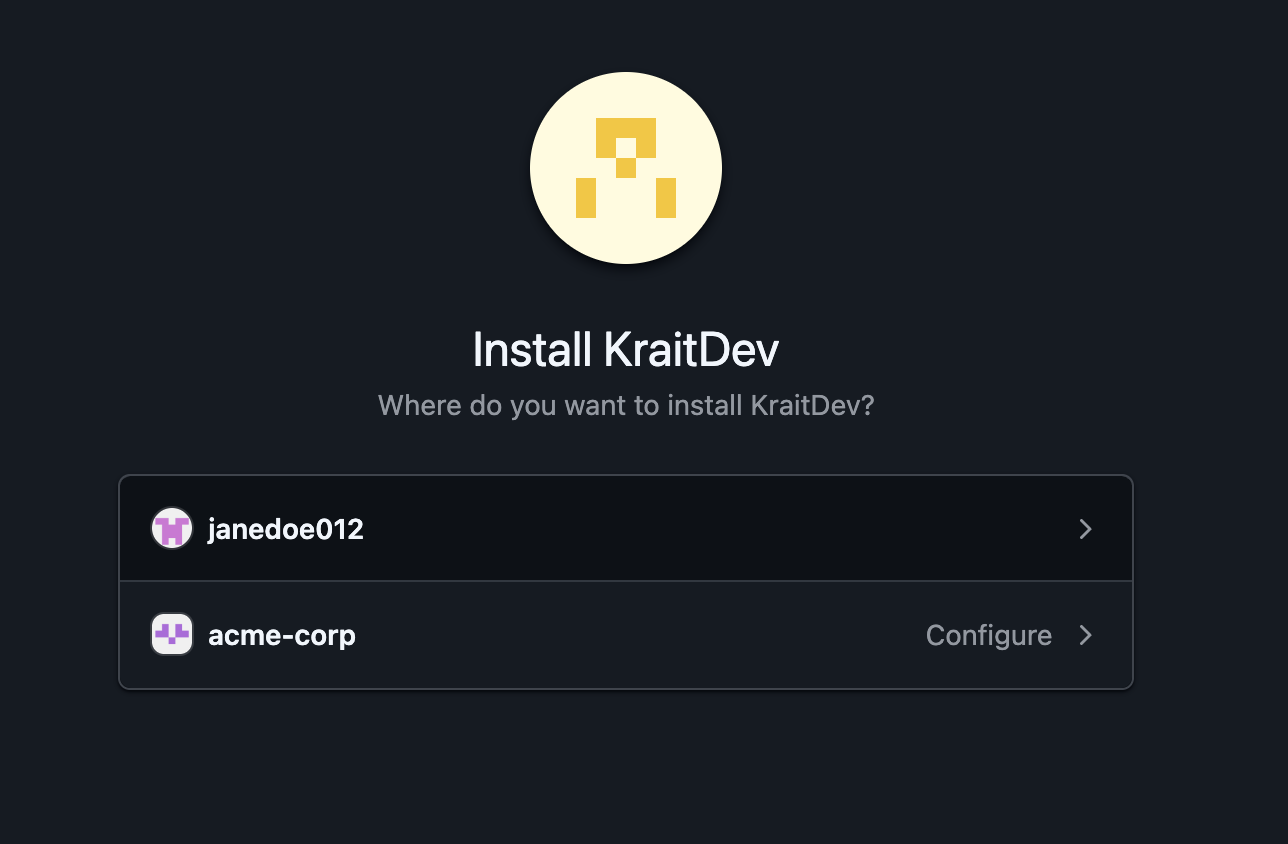
3
Select Your Account
Select the organization or personal GitHub account where you want to enable the integration.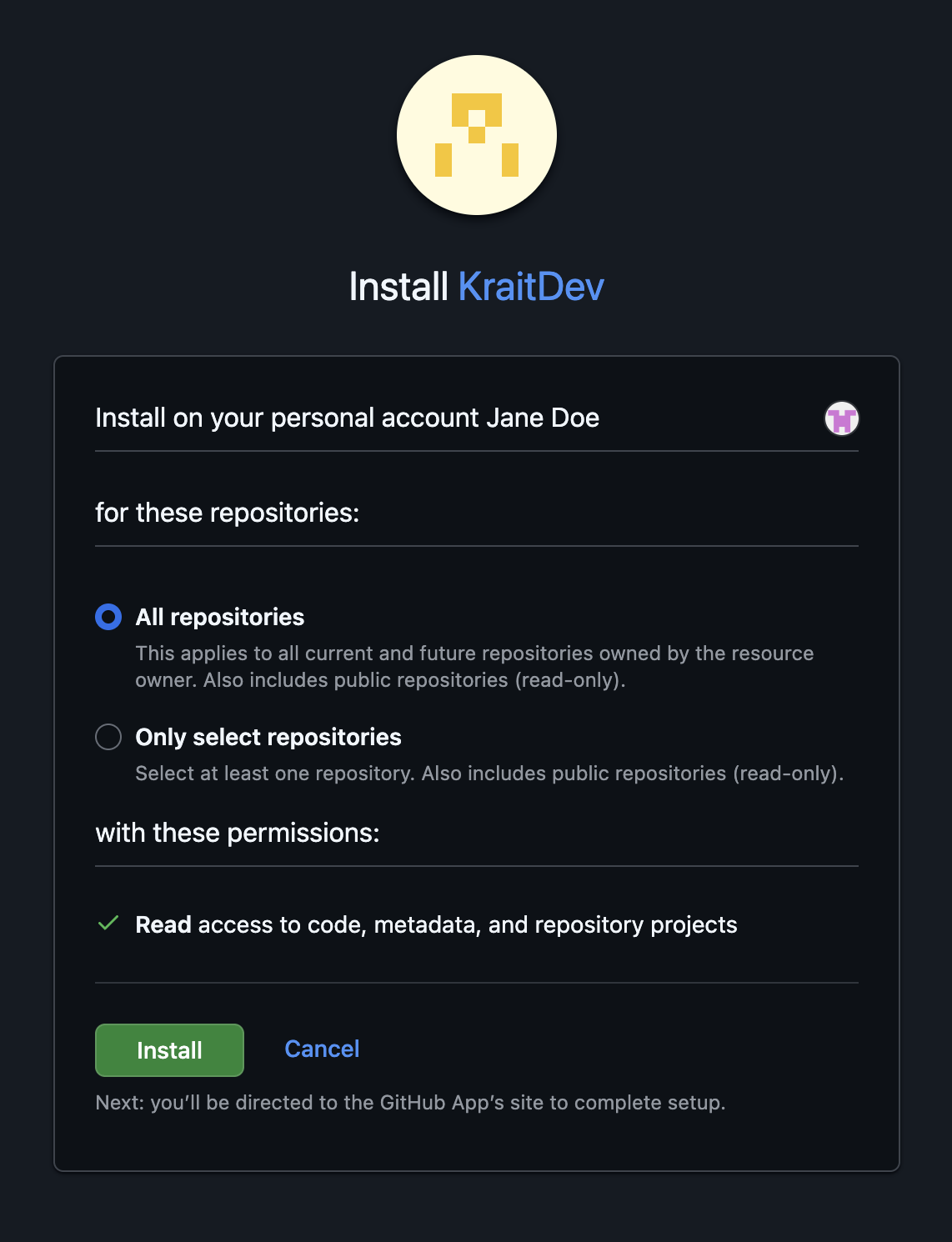
4
Choose Repositories
Pick the repositories you want Krait to access and scan. You may select specific repositories or grant access to all repositories.
5
Review and Confirm Permissions
Review the permissions requested by the Krait GitHub App and complete the installation.
6
Return to Krait
After installation, you’ll be redirected back to Krait where your repositories will now appear and be available for integration.
Disconnecting Github
To disconnect GitHub from Krait, navigate to Integrations in the main sidebar and select Version Control. Locate GitHub among your connected integrations and click Disconnect. This action requires workspace owner permissions. Confirm the confirmation prompt to remove the integration. After disconnection, GitHub repositories will no longer be synced or scanned by Krait. GitHub can be reconnected from the Version Control section when desired.You may need to uninstall the KraitDev app from your Github account manually.